 ChatGPT
 Claude
 Gemini
 Perplexity
Client Portal
The Client Portal brings your own organization’s assessments, results, reports, and follow-up work together. Start with Getting Started for the role-specific Prepare → Assess → Review and act guide.
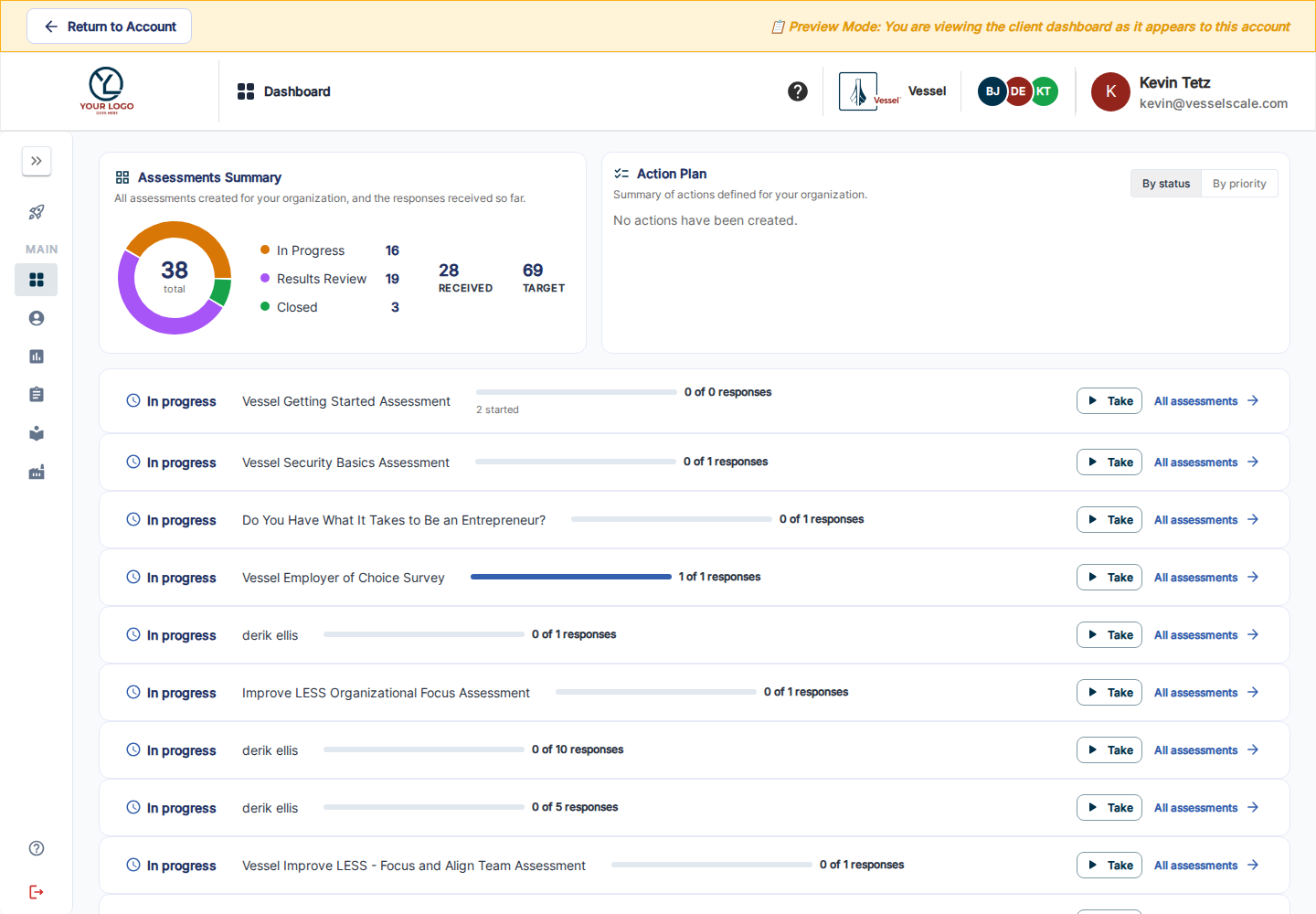
Find your next task
| Area | What it is for |
|---|---|
| Getting Started | Learn the workflow and open the next workspace. |
| Dashboard, where enabled | See account progress, scores, trends, and available benchmarking. |
| Account, where enabled | Review and maintain your own organization’s details and contacts. |
| Assessments | Find assessments assigned to or created by your account and open available response or report actions. |
| Actions, where enabled | Follow recommendations, solutions, priorities, and implementation work. |
| Library | Browse the assessment types your administrator has made available and start an assessment for your account. |
| Industries | Explore industry classifications and available context. |
Portal layouts depend on enabled features. Some layouts provide Actions and Industries as Dashboard tabs. The Library is a catalog of templates; Assessments contains actual work already created for your account.
Status and results
Draft means the assessment is being prepared. In Progress means it is collecting responses within its date window. Results Review means findings are being reviewed. Closed makes finalized results available according to report access settings. Use the actions shown for your assessment and contact your account executive when an assigned assessment needs changes.
Your account
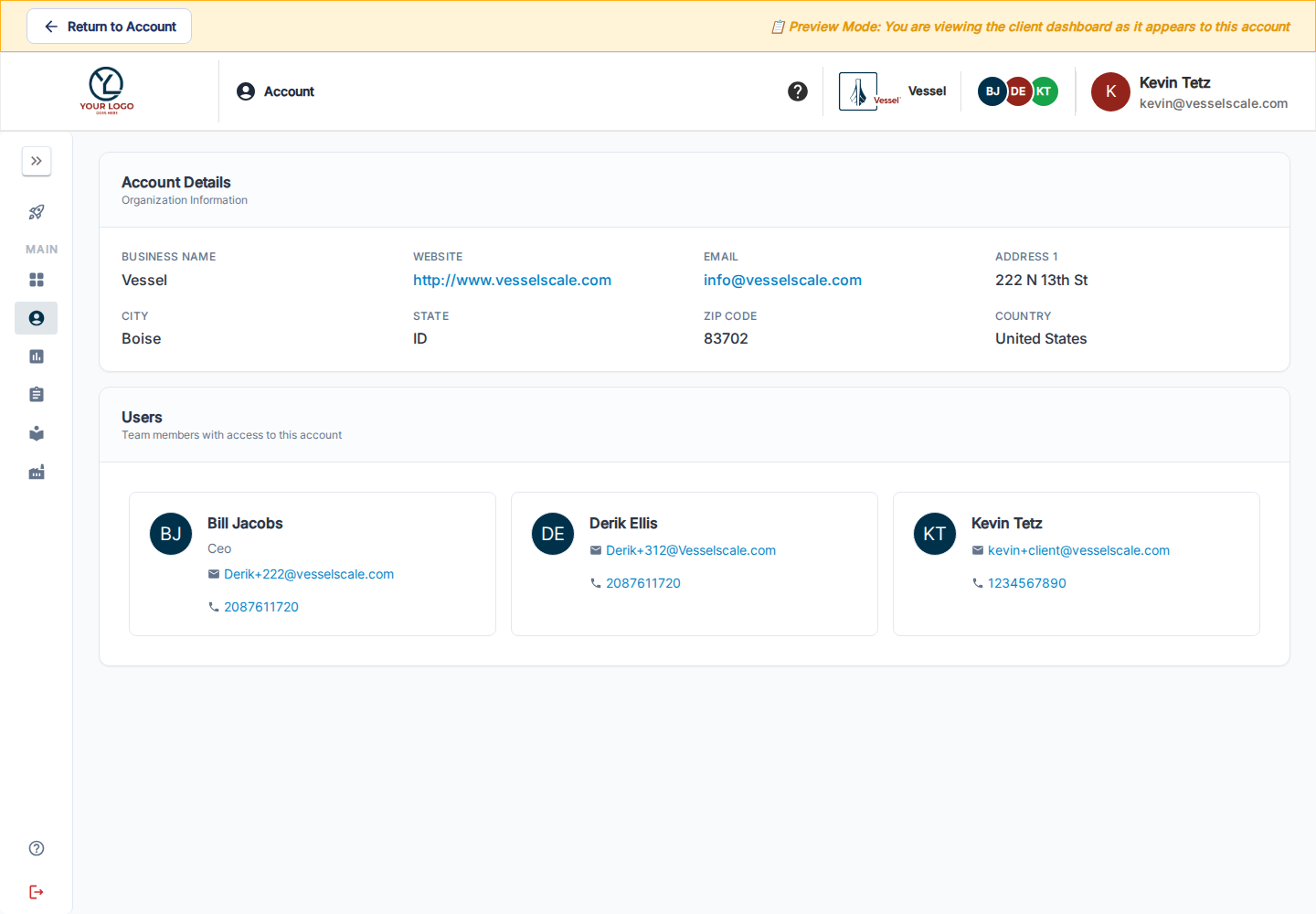
Where available, use Account to keep your organization’s business details, address, industry classification, and contacts current. Review the users associated with the account and use the edit/access controls offered to you. If your login belongs to the wrong organization or an access control is missing, contact your account executive.
Follow up on actions
Open Actions, or the Dashboard’s Actions tab in older layouts. Select an assessment and switch between Recommended Actions, Solutions, Key Priorities, and Implementation Details & Timing. Your organization may rename the first two lists.
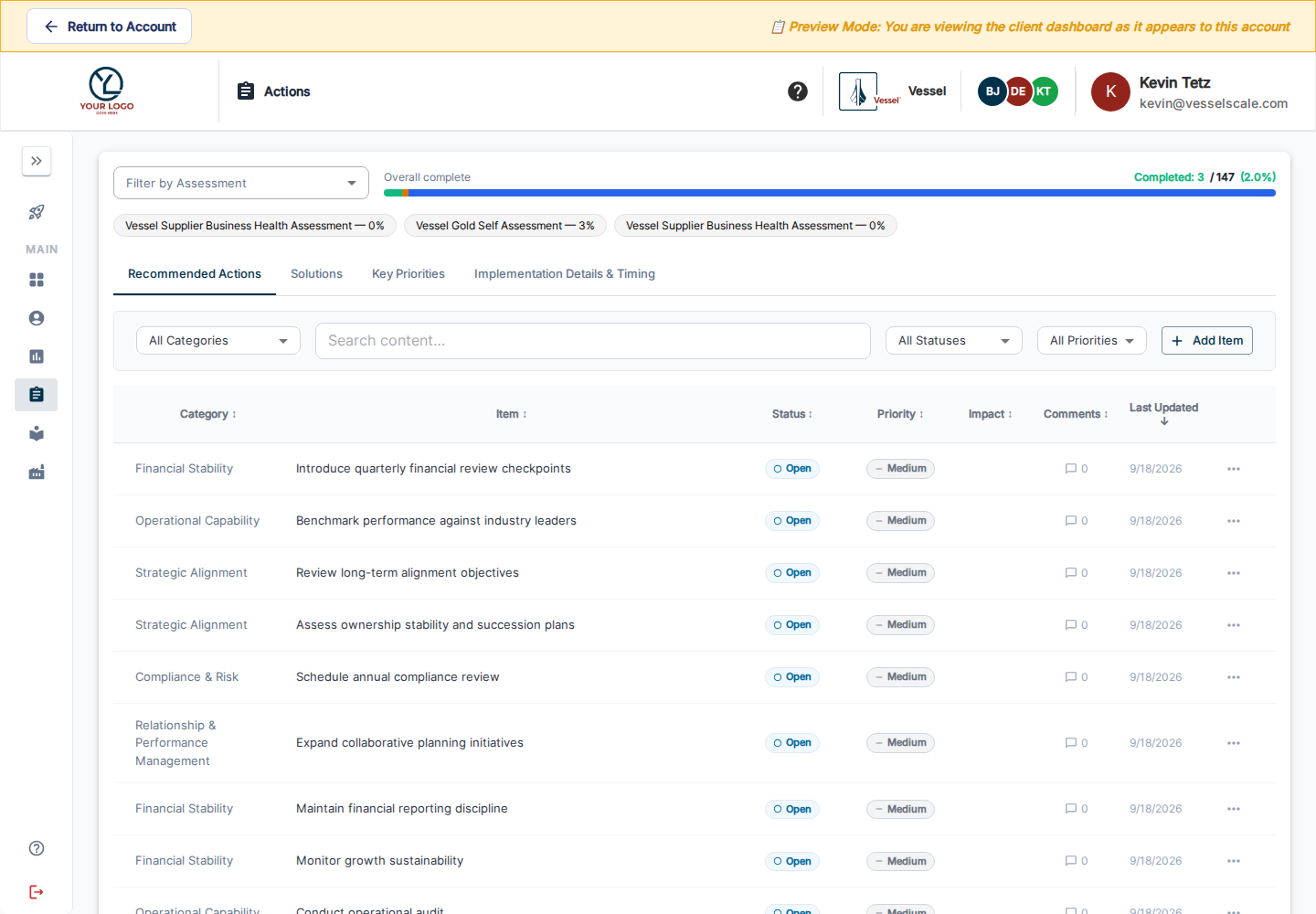
Use category, status, priority, and search filters to focus the work. Open an item to review its assessment/category context and use the updates and comments available to you to record progress. Discuss owners, due dates, and priorities with your account executive. A project link may connect an action with the delivery system used by your team.
The initial items come from the recommendations and Plan of Action reviewed at first assessment closure. Later updates belong in the tracker; reclosing an assessment does not regenerate those items. Where impact fields are available, use the named units and explain whether values are estimates or confirmed results.
Industry context
Open Industries to explore NAICS classifications. Use the dashboard’s available industry/peer comparisons alongside your assessment results. Check the assessment type and comparison data before interpreting a score; missing data is not zero. See Industry context and benchmarking.
Reports and PDF output
Open the report or View Analysis action available for the assessment. Read the category results together with the analysis and recommendations shared by your account executive. If a report is missing, ask your account executive to check access for that particular assessment and report.
Use the report’s Print control, or your browser’s Print command and Save as PDF, for a browser-produced document. AI PDF is a separate generation option that appears only when enabled for that report. Wait for generation, review the result, and download or share the available output.
Staff preview
Staff enter this layout through Account → Overview → View as Client and return with Return to Account. Preview keeps staff permissions, so client-private assessments stay hidden from ordinary staff. Screenshots with the Preview Mode banner illustrate this staff preview.
Client Getting Started · Assessments · Library · Staff guide